Manual for Two-Factor Authentication (2FA) in Nmbrs
To enhance the security of your environment in Nmbrs, we use two-factor authentication (2FA). After logging in with your email address and password, you will be prompted to enter a code. This code is generated by an Authenticator app or is your pre-set PIN.
Depending on your permissions, you will log in via PIN or Authenticator app.
Actions for Using the ‘Authenticator App’
First Time Logging In
Screen upon first login When you log in for the first time, you will see the following screen:
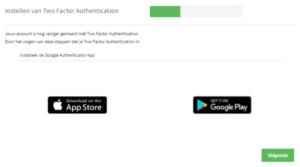
- Install Authenticator App
- Install the Authenticator App if you do not already have it.
- Click Next.
- Add Account in the Authenticator App
- Open the Authenticator App on your phone.
- Click the + sign to add a new account.
- Scan the QR code displayed on your screen.
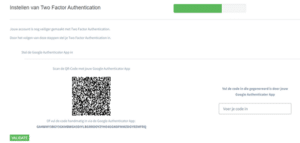
- Enter Code
- The Nmbrs Two Factor Authentication is now added in the Authenticator App.
- Enter the code generated by the Authenticator App in the field “Enter the code generated by your Google Authenticator App”.
- Click Validate.
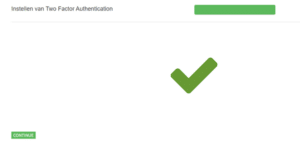
- Complete Installation
- Two Factor Authentication is now successfully installed.
- Click Continue.
Logging In After Installing Two Factor Authentication
Screen on subsequent logins
Bij de volgende keer inloggen verschijnt het volgende scherm:
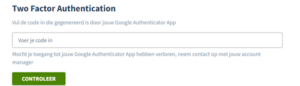
- Generate and Enter Code
- Open the Authenticator App on your phone.
- Generate a one-time password code.
- Enter the code on your screen in the designated field.
- Click Verify.
- Complete Login
- You are now logged in (with extra security).
Actions for Using ‘PIN Code’:
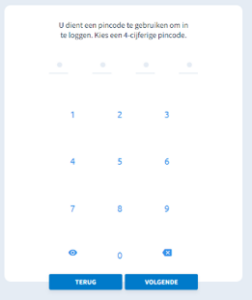
When you log in where the PIN code is activated, you will see the screen below. You can now enter a PIN code twice. From now on, you can log in using this PIN code.